
Enable “God Mode” in Windows 11 (Yes, It’s a Real Thing)
Windows has a secret. Not a conspiracy secret — a “Microsoft hid all the settings in one place so you’d stop clicking around” secret. It’s called “God Mode” and once you enable it – you get one single folder that gives you access to hundreds of advanced Windows tools and settings – without bouncing between Control Panel and the Settings app like a caffeinated squirrel.
Let’s flip the switch. What Is Windows “God Mode“? (No Divine Powers Included). Despite the dramatic name, God Mode doesn’t give you superpowers or unlock the Matrix.
What it does give you is: one centralized folder, hundreds of Windows tools, everything neatly organized, zero third-party software, a massive time saver for setups & tweaks. Think of it as “Control Panel” on steroids.”
Before You Start Clicking Stuff
·You must be logged in as an Administrator
·This usually won’t work on locked-down work or school PCs
·If you don’t understand a setting, maybe don’t touch it just because it’s shiny
METHOD 1: Run Dialog
Step 1: Open the Run Dialog
Press Windows Key + R 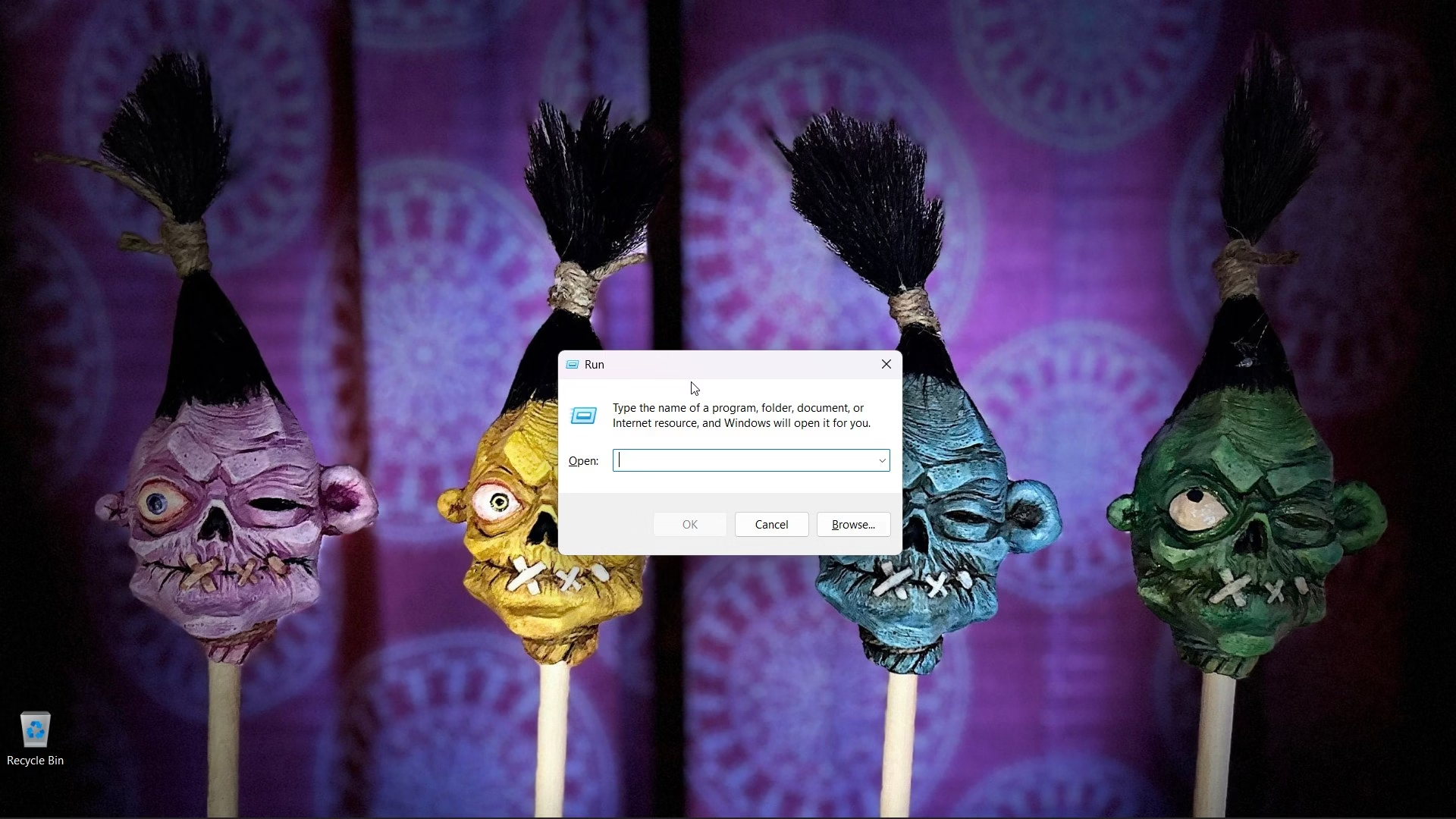
This opens the small Run Box in the bottom-left corner of your screen.
Step 2: Paste the God Mode Command
Copy and paste EXACTLY this: shell:::{ED7BA470-8E54-465E-825C-99712043E01C}
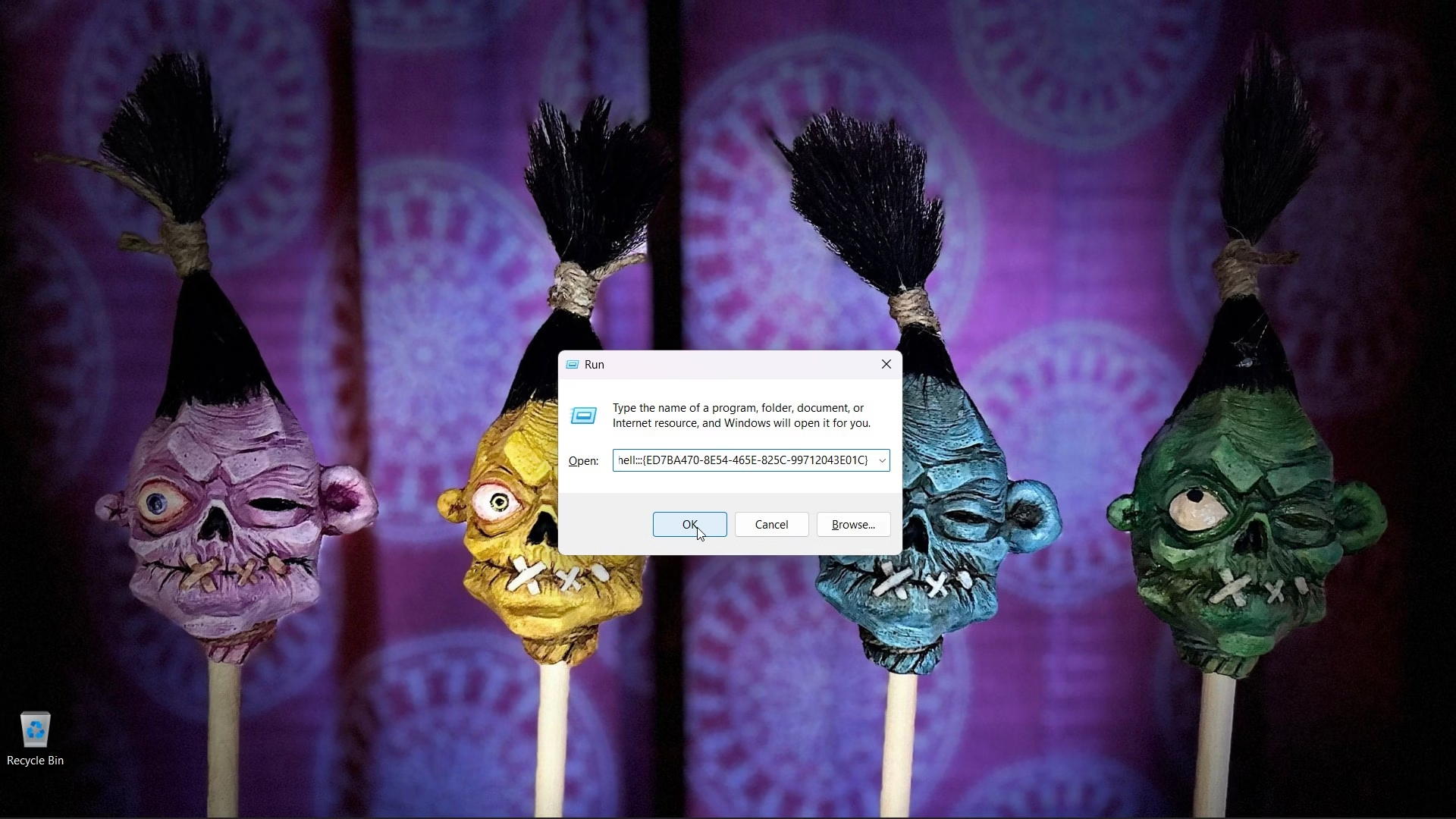
Step 3: Press Enter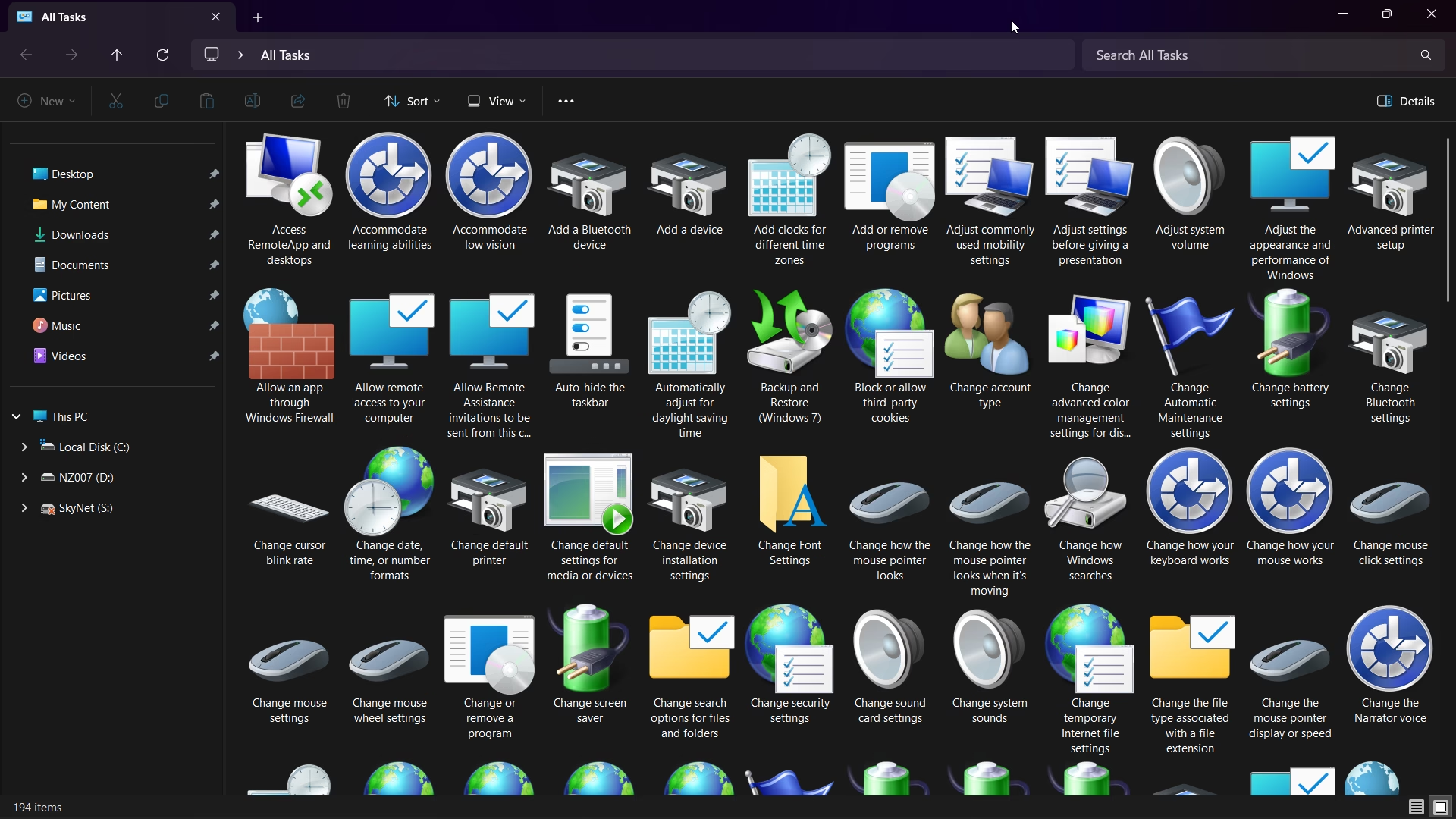
METHOD 2 – Shortcut
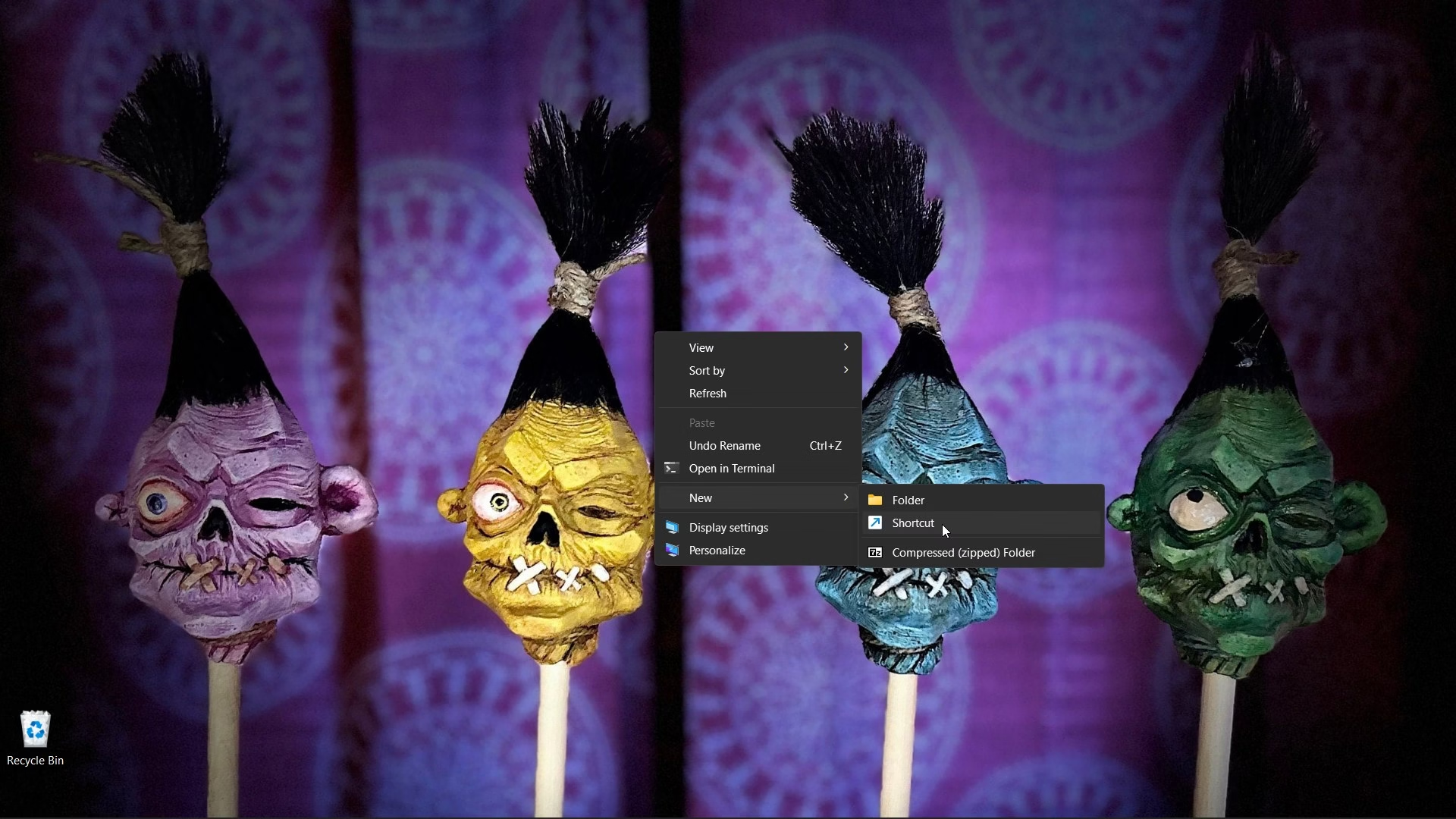
Step 1: Right-click Desktop
Select New → Shortcut
Step 2: Paste (EXACTLY): explorer.exe shell:::{ED7BA470-8E54-465E-825C-99712043E01C}
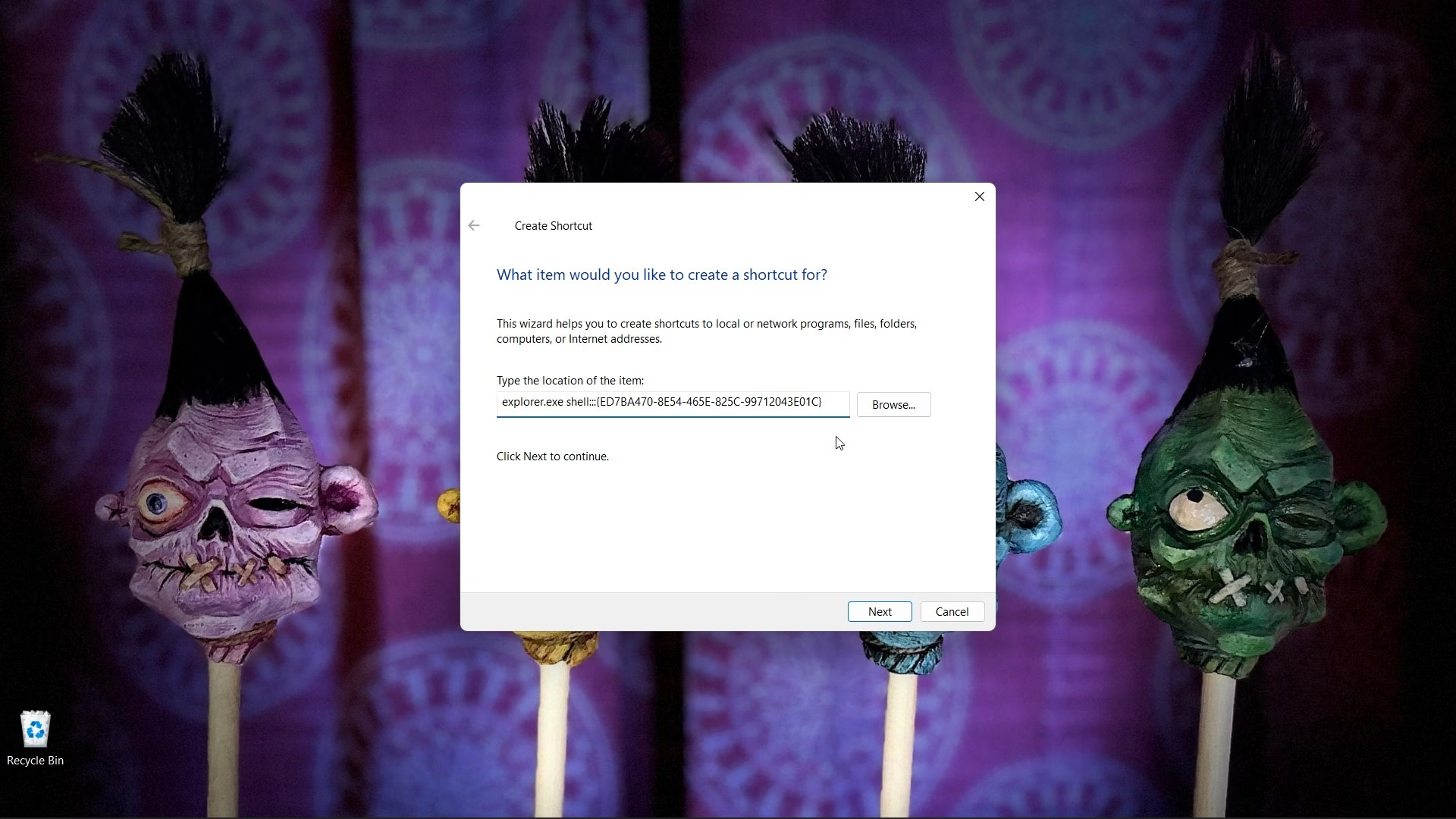
Click Next
Step 3: Name it “God Mode“
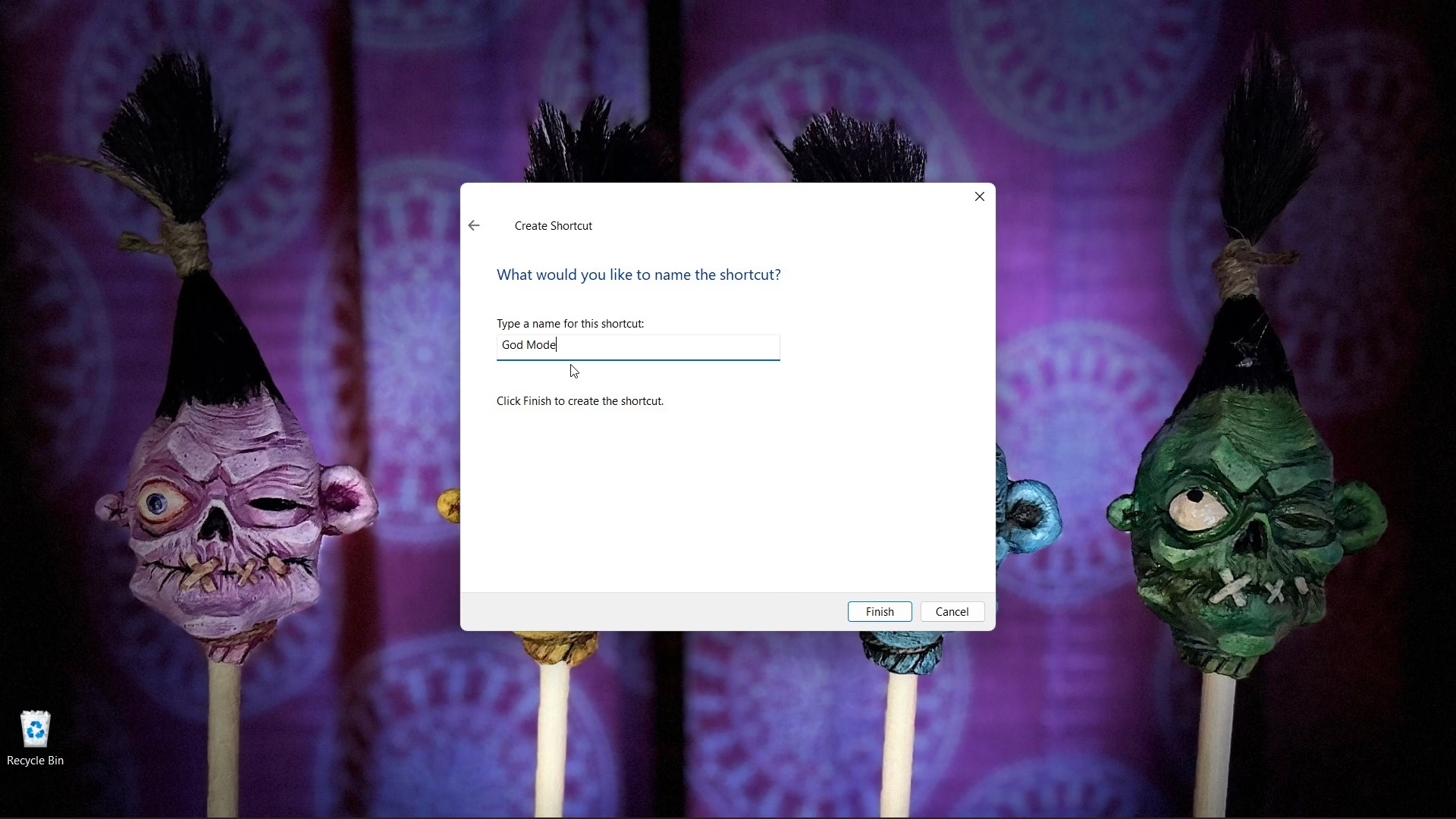
Click Finish

Now you’ve got one-click “God Mode” – forever.
METHOD 3 – Legacy Option (does *not* work on all computers) :
Step 1: Create a New Folder
·Go to your Desktop → Right Click on an empty area
·Select New → Folder
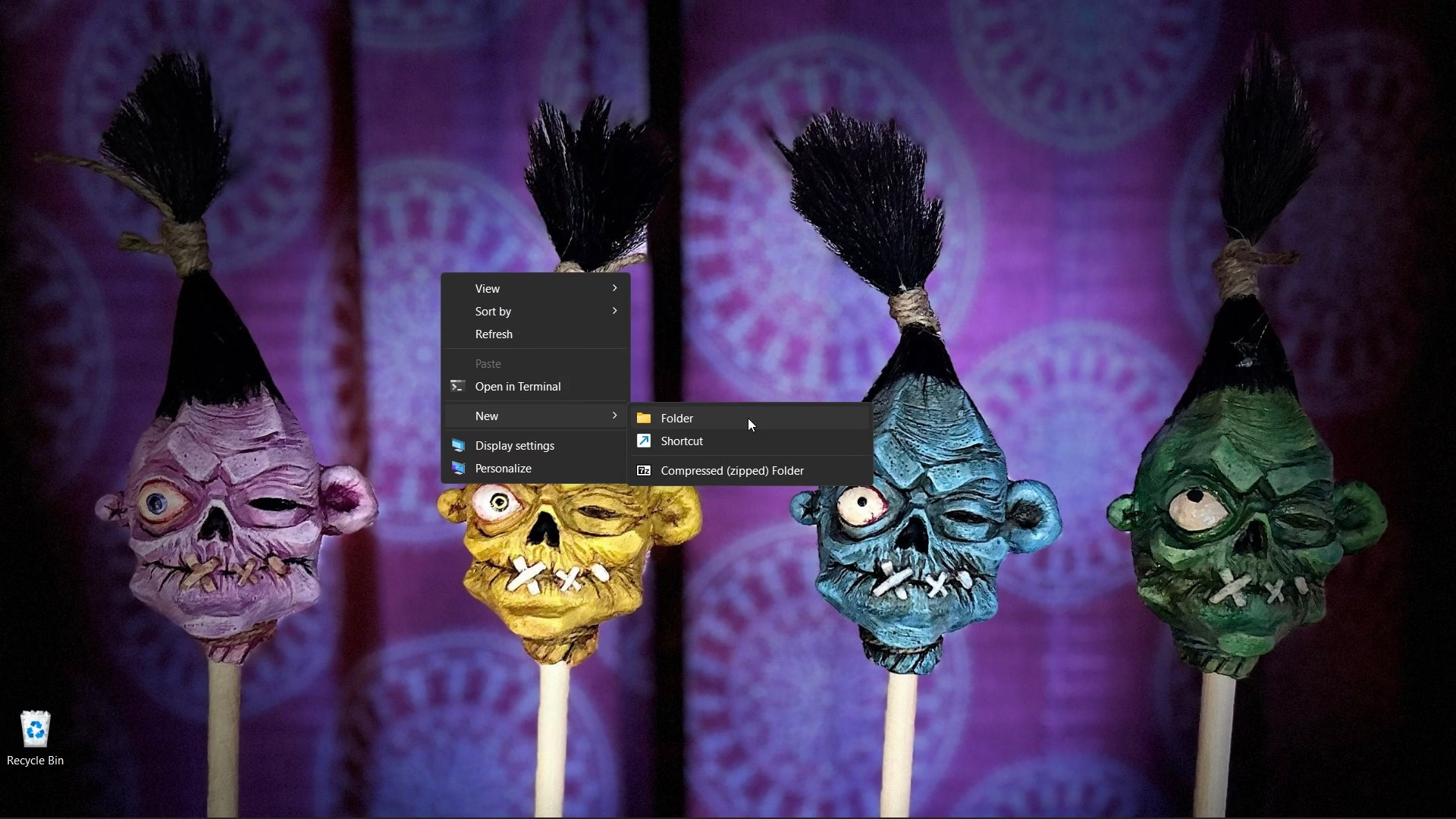
Step 2: Rename the Folder (This Part Matters)
·Right-click the new folder
·Click Rename
·Paste this exact name (copy & paste is your friend): GodMode.{ED7BA470-8E54-465E-825C-99712043E01C}

·Press Enter
If the folder icon instantly changes – congratulations. You’ve successfully annoyed Windows into obeying you. How to Use God Mode (without breaking anything):
Step 3: Open It & Double-Click the “God Mode” folder. You’ll see hundreds of system tools grouped by category. Everything from: Power Options, Backup & Restore, Network Settings, Administrative Tools , Device Management & way more than the Settings app wants you to know about.

Pro Tip: Looking for something specific? Use the search box in the top-right. Type keywords like: clock, firewall, updates, power
Double-click any item to open it – make your changes & close it like a responsible adult.
FAQ – Frequently Asked Questions (Because Windows Users Ask These)
Does God Mode unlock new features?
Nope. It just organizes existing Windows tools into one place.
Can this damage my system?
Only if you start clicking things you don’t understand. God Mode gives you access — not immunity.
Can I delete the folder later?
Yes. Deleting the folder removes God Mode instantly. No harm done.
Is this safe?
Yes. It’s an official Microsoft feature that’s been around for years.
Final Thoughts (AKA: Why You Should Actually Use This)
God Mode is perfect if you: set up new PCs often, hate digging through menus, want fast access to advanced tools and/or prefer efficiency over UI gymnastics. It’s clean. It’s powerful. And Windows never tells anyone about it. And remember: just because it’s called God Mode doesn’t mean you should click everything like one.